Your smartphone is now a full Point of Sale system. Learn how to set up, manage products, bill customers, and grow your business — step by step.
आपका स्मार्टफोन अब एक पूर्ण पॉइंट ऑफ सेल सिस्टम है। स्टोर सेट अप करना, उत्पाद जोड़ना, बिलिंग करना और अपना व्यवसाय बढ़ाना — सब कुछ स्टेप-बाय-स्टेप सीखें।
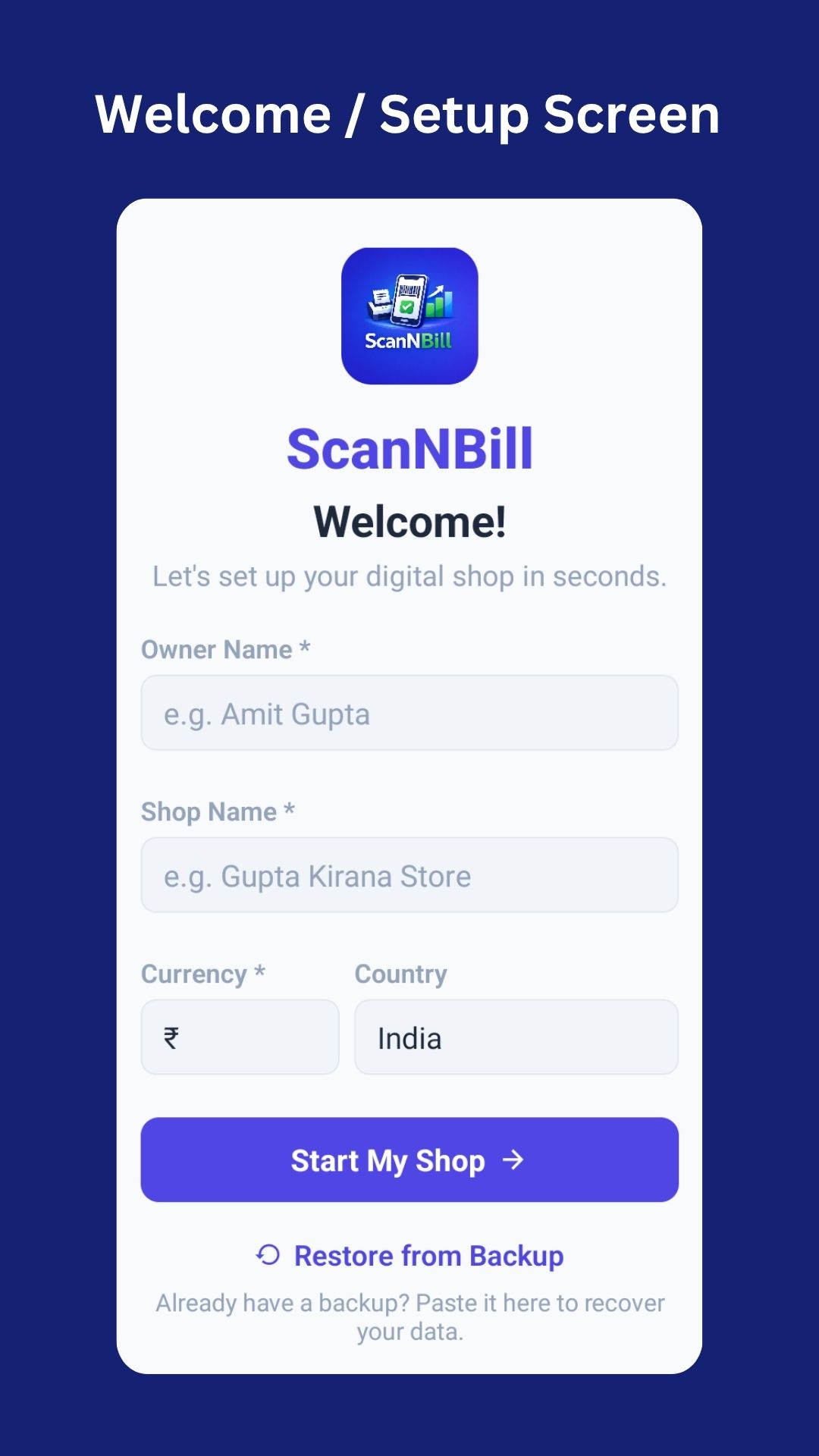
Type your name in the "Owner Name" field. This appears on invoices and the welcome greeting.
"Owner Name" फ़ील्ड में अपना नाम टाइप करें। यह इनवॉयस और वेलकम स्क्रीन पर दिखेगा।
Type your shop's name (e.g., "Gupta Kirana Store"). This appears on all bills and barcode printouts.
अपनी दुकान का नाम टाइप करें (जैसे "गुप्ता किराना स्टोर")। यह सभी बिलों और बारकोड प्रिंटआउट पर दिखेगा।
The default is ₹ (Indian Rupee). You can change it to $, £, AED, or any symbol — up to 3 characters.
डिफ़ॉल्ट ₹ (भारतीय रुपया) है। आप इसे $, £, AED या कोई भी प्रतीक (अधिकतम 3 अक्षर) बदल सकते हैं।
Type your country name. This is optional and used for reference only.
अपने देश का नाम टाइप करें। यह वैकल्पिक है और केवल संदर्भ के लिए उपयोग होता है।
That's it! Your shop is ready. You'll land on the Dashboard. Start adding products next.
बस हो गया! आपकी दुकान तैयार है। अब डैशबोर्ड खुलेगा। अगला काम उत्पाद जोड़ना है।
Welcome screen on first launch
पहली बार खोलने पर वेलकम स्क्रीन
Auto-generates a unique barcode for every product you add.
हर उत्पाद के लिए अपने आप यूनीक बारकोड बनता है।
Print a PDF catalogue of all your product barcodes at once.
सभी उत्पादों के बारकोड एक PDF में प्रिंट करें।
Use your phone's camera to scan and instantly add items to the cart.
फोन कैमरे से स्कैन करें और तुरंत कार्ट में जोड़ें।
Record credit sales, track who owes you, and collect payments.
उधार बिक्री दर्ज करें, किसका कितना बकाया है देखें।
See today's sales, total revenue, bills count and outstanding credits.
आज की बिक्री, कुल राजस्व, बिल और बकाया एक ही जगह देखें।
Track stock levels. Get warnings when items are low or out of stock.
स्टॉक ट्रैक करें। कम स्टॉक पर अलर्ट मिलेगा।
Generate and share PDF invoices via WhatsApp, email, or any app.
PDF इनवॉयस बनाएं और WhatsApp, ईमेल से शेयर करें।
Export all data as JSON. Import it back on any device anytime.
सारा डेटा JSON में एक्सपोर्ट करें। कभी भी किसी डिवाइस पर इम्पोर्ट करें।
Enter a clear name, e.g., "Basmati Rice 1kg" or "Surf Excel 1kg".
स्पष्ट नाम दर्ज करें, जैसे "बासमती चावल 1 किलो" या "सर्फ एक्सेल 1 किलो"।
Enter the price at which you sell this product, e.g., 75.00.
वह कीमत दर्ज करें जिस पर आप यह उत्पाद बेचते हैं, जैसे 75.00।
How many units do you currently have? E.g., 50. You can enter 0 if you're just registering the product now.
अभी कितनी मात्रा है? जैसे 50। अगर अभी स्टॉक नहीं है तो 0 डालें।
Choose from: pcs kg g L ml box bag dozen
इनमें से चुनें: pcs kg g L ml box
Add brand, variant, or any notes. E.g., "Premium quality, imported".
ब्रांड, वेरिएंट या कोई नोट जोड़ें। जैसे "प्रीमियम क्वालिटी"।
The product is saved and a unique barcode ID is automatically assigned to it.
उत्पाद सेव हो जाएगा और इसे एक यूनीक बारकोड ID अपने आप मिल जाएगी।
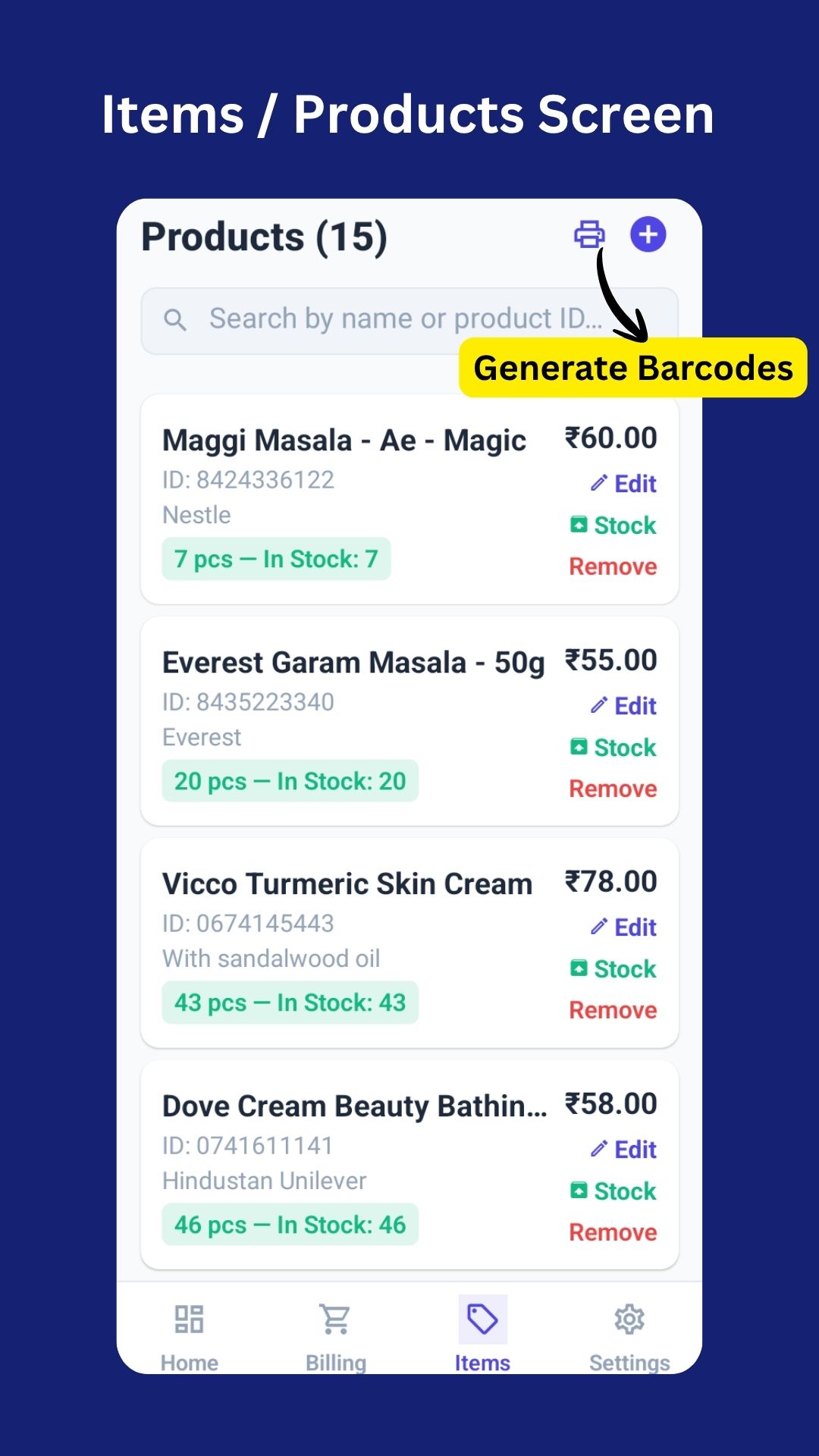
Find the product in your list. Use the search bar to quickly find it by name or product ID.
उत्पाद लिस्ट में ढूंढें। नाम या ID से सर्च करें।
Tap the Edit button on the product card to open the edit form.
प्रोडक्ट कार्ड पर Edit दबाएं।
Update the name, price, stock, or unit. Tap "Update Product" when done.
नाम, कीमत, स्टॉक या इकाई बदलें। "Update Product" दबाएं।
Tap the Stock button on the product.
उत्पाद पर Stock बटन दबाएं।
• To add stock: enter a positive number, e.g., 50
• To reduce stock: enter a negative number, e.g., -5
• स्टॉक जोड़ने के लिए: सकारात्मक संख्या दर्ज करें, जैसे 50
• स्टॉक घटाने के लिए: ऋणात्मक संख्या दर्ज करें, जैसे -5
Stock is updated instantly. A confirmation shows the new stock level.
स्टॉक तुरंत अपडेट हो जाएगा और नया स्टॉक लेवल दिखेगा।
On the product card in the Items tab, tap Remove. Confirm the deletion in the prompt that appears. Items टैब में प्रोडक्ट कार्ड पर Remove दबाएं। पुष्टि डायलॉग में OK करें।
It will not recognise the original barcodes printed on product packaging (like the ones on biscuit packets or shampoo bottles). You must print and stick ScanNBill's own barcode stickers on your products.
यह उत्पाद की पैकेजिंग पर छपे मूल बारकोड (जैसे बिस्किट पैकेट या शैम्पू बोतल पर) को नहीं पहचानेगा। आपको ScanNBill के बारकोड स्टिकर प्रिंट करके उत्पादों पर लगाने होंगे।
Make sure you have at least one product added.
सुनिश्चित करें कि कम से कम एक उत्पाद जोड़ा गया हो।
Tap the printer icon at the top-right of the Items screen. A PDF will be generated with all your products — 3 barcodes per row.
Items स्क्रीन के ऊपर-दाईं ओर प्रिंटर आइकन दबाएं। एक PDF बनेगी जिसमें सभी उत्पादों के बारकोड होंगे — हर पंक्ति में 3 बारकोड।
The share sheet will open. Choose your printer, send via WhatsApp/email, or save to your phone to print later.
शेयर शीट खुलेगी। अपना प्रिंटर चुनें, WhatsApp/ईमेल से भेजें, या फोन में सेव करें।
Print on sticker paper or plain paper. Cut out each barcode and stick or tape it onto the product or its shelf.
स्टिकर पेपर या सादे कागज पर प्रिंट करें। बारकोड काटें और उत्पाद या शेल्फ पर चिपकाएं।
Generate barcode catalogue PDF
बारकोड कैटलॉग का पीडीएफ बनाएं
Tap Billing in the bottom navigation bar.
नीचे के नेविगेशन बार में Billing दबाएं।
The camera will open. A frame guide will appear on screen.
कैमरा खुलेगा। स्क्रीन पर एक फ्रेम गाइड दिखेगी।
Align the barcode (the one you printed with ScanNBill) within the frame. The phone will vibrate and show the product name on success.
बारकोड (जो आपने ScanNBill से प्रिंट किया है) को फ्रेम में लाएं। सफल स्कैन पर फोन वाइब्रेट करेगा और उत्पाद का नाम दिखेगा।
Continue scanning more products. Each scan adds 1 unit of that product to the cart. Scan the same barcode again to add another unit.
और उत्पाद स्कैन करते रहें। हर स्कैन से कार्ट में 1 यूनिट जुड़ती है। दोबारा स्कैन करने पर एक और यूनिट जुड़ेगी।
Tap the ✕ button to close the scanner and review your cart.
✕ बटन दबाकर स्कैनर बंद करें और कार्ट देखें।
You can also add items without scanning — useful for products you haven't printed barcodes for yet, or for quick manual billing. आप बारकोड स्कैन किए बिना भी आइटम जोड़ सकते हैं — उन उत्पादों के लिए जिनके बारकोड अभी नहीं छपे हैं।
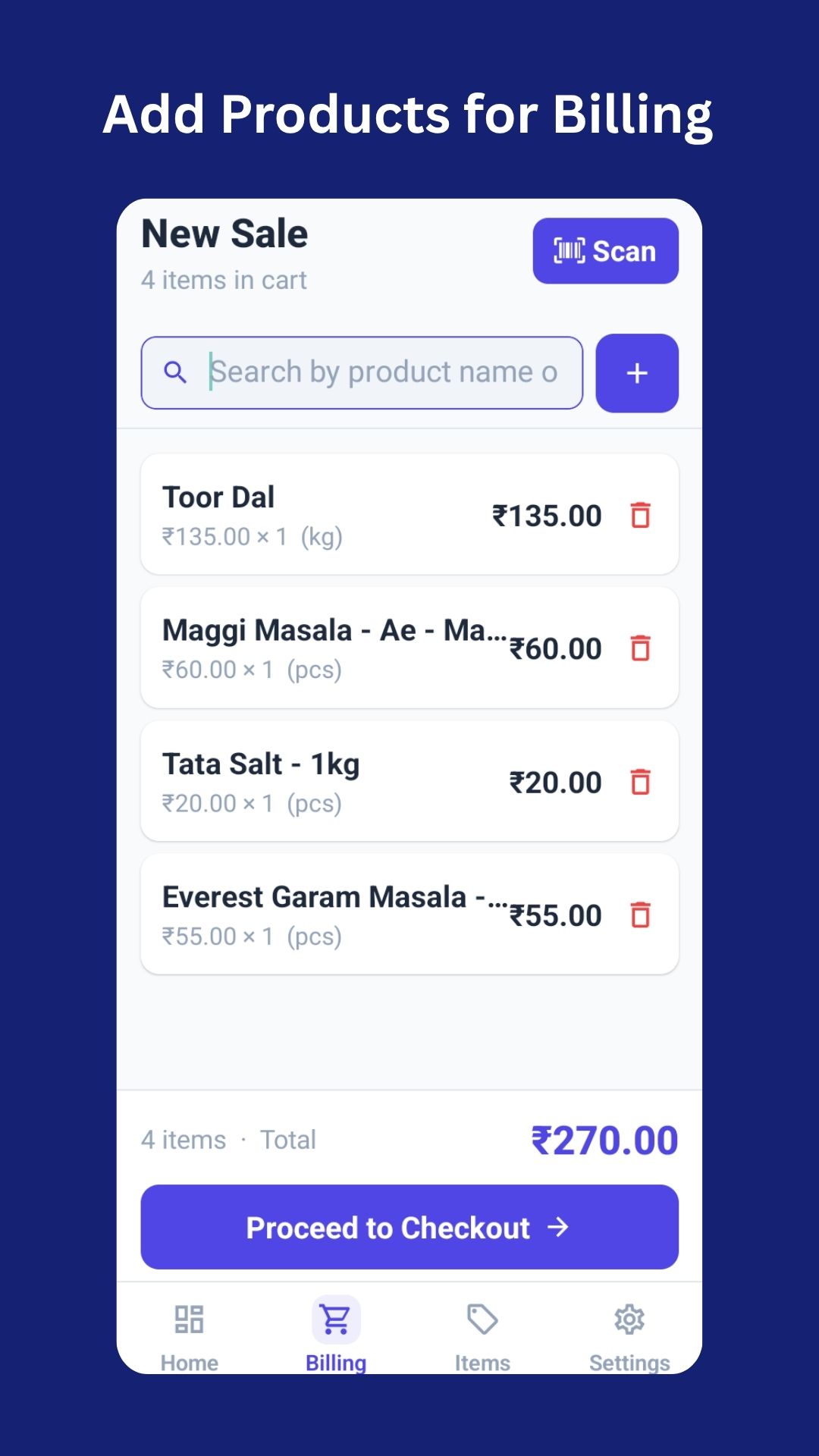
In the Billing tab, type a product name or its ID in the search bar. A dropdown list of matching products will appear.
Billing टैब में सर्च बार में उत्पाद का नाम या ID टाइप करें। मिलते-जुलते उत्पादों की सूची दिखेगी।
Tap any product in the dropdown. It gets added to the cart instantly.
ड्रॉपडाउन में कोई भी उत्पाद दबाएं। वह तुरंत कार्ट में जुड़ जाएगा।
See all items, quantities, and the total. Tap any item to edit its quantity or price for this bill only.
सभी आइटम, मात्रा और कुल राशि देखें। किसी आइटम पर दबाकर इस बिल के लिए मात्रा या कीमत बदलें।
Review the order summary one final time.
अंतिम बार ऑर्डर की जानकारी जांचें।
Enter a discount amount in the "Discount Amount" field if applicable. The final total updates automatically.
अगर छूट देनी हो तो "Discount Amount" फ़ील्ड में राशि दर्ज करें। अंतिम कुल अपने आप बदलेगा।
Tap "Confirm Payment". The sale is recorded, stock is reduced automatically, and you're ready for the next customer!
"Confirm Payment" दबाएं। बिक्री रिकॉर्ड होगी, स्टॉक अपने आप घटेगा, और अगले ग्राहक के लिए तैयार!
Billing in action
बिलिंग प्रक्रिया
Cart with items ready for checkout
चेकआउट के लिए तैयार कार्ट
Scan or search for products and add them to the cart.
उत्पाद स्कैन या सर्च करके कार्ट में जोड़ें।
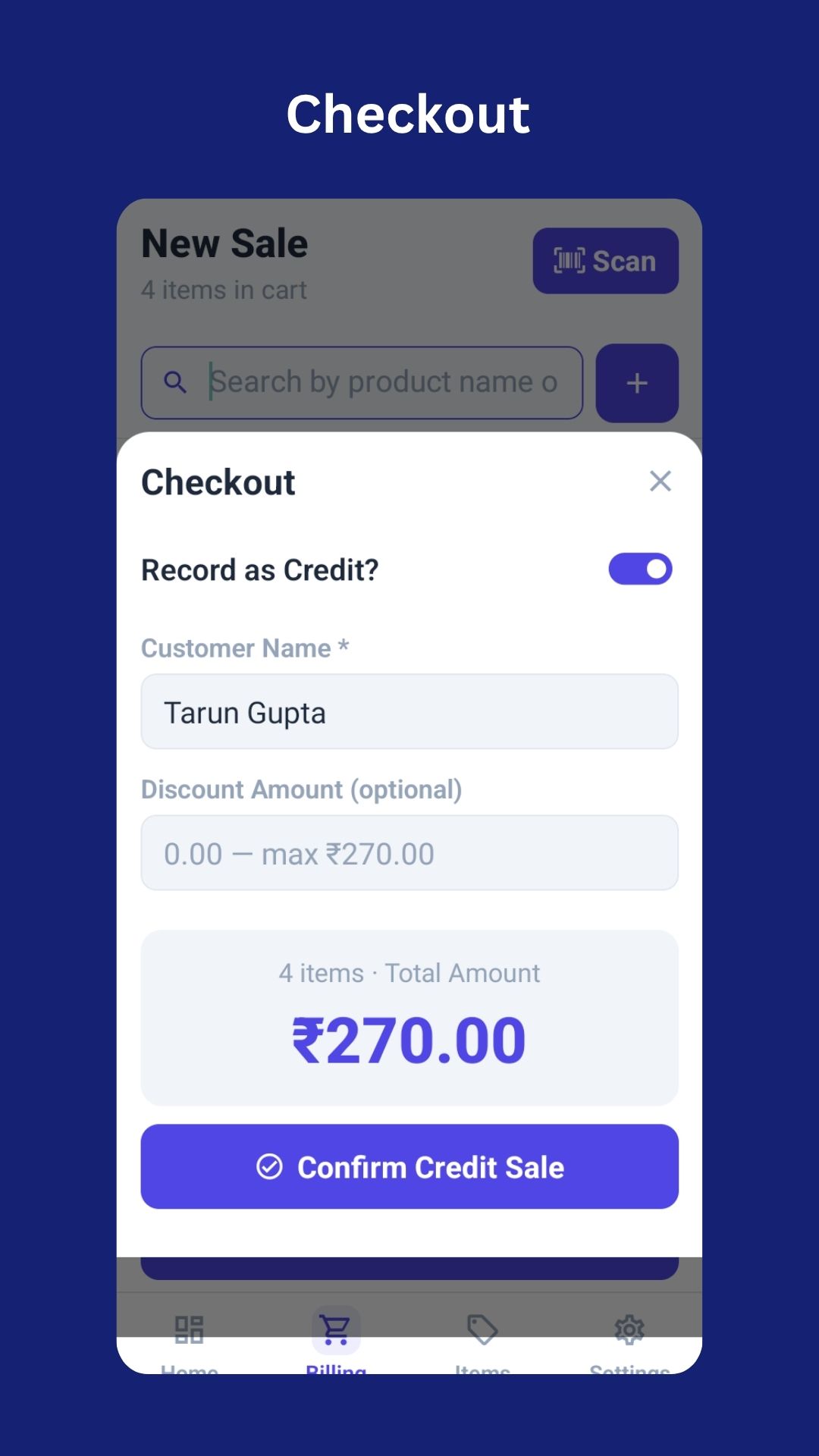
At checkout, toggle "Record as Credit?" to ON (it turns blue/indigo).
चेकआउट में "Record as Credit?" टॉगल चालू करें (यह नीला/इंडिगो रंग में हो जाएगा)।
Type the customer's name. If they have an existing balance, their name and outstanding amount will appear as a suggestion. Select it to auto-fill.
ग्राहक का नाम टाइप करें। अगर उनका पहले से बकाया है, तो उनका नाम और बकाया राशि सुझाव में दिखेगी।
The sale is recorded as credit. The customer's outstanding balance is updated on the Dashboard.
बिक्री उधार के रूप में दर्ज होगी। ग्राहक का बकाया डैशबोर्ड पर अपडेट होगा।
Scroll down to see the Outstanding Credits section listing all customers who owe you.
नीचे स्क्रॉल करके Outstanding Credits सेक्शन देखें जिसमें सभी उधारदार ग्राहक दिखेंगे।
A settlement modal opens showing their outstanding balance.
एक सेटलमेंट विंडो खुलेगी जिसमें उनका बकाया दिखेगा।
Tap Collect, enter the amount received. Or tap "Full amount" to auto-fill the total outstanding.
Collect दबाएं, प्राप्त राशि दर्ज करें। या "Full amount" दबाकर पूरा बकाया भरें।
The customer's balance is reduced. If fully paid, they disappear from the outstanding list.
ग्राहक का बकाया कम होगा। पूरा भुगतान होने पर वे बकाया सूची से हट जाएंगे।
Follow the same steps as "Collecting a Payment" above, but select the Write Off option instead. Enter the amount to forgive and confirm. ऊपर "उधार वसूली" के समान चरणों का पालन करें, लेकिन Write Off विकल्प चुनें। माफ की जाने वाली राशि दर्ज करें और पुष्टि करें।
Total revenue collected today (cash + credit). आज प्राप्त कुल राजस्व (नकद + उधार)।
All-time or filtered revenue based on the date filter you select. चुने गए फ़िल्टर के अनुसार कुल राजस्व।
Total amount owed to you by all credit customers combined. सभी उधार ग्राहकों का कुल बकाया।
Number of transactions recorded in the selected period. चुने गए समय में दर्ज लेनदेन की संख्या।
Use the filter chips at the top of the Dashboard: डैशबोर्ड के ऊपर फ़िल्टर चिप्स का उपयोग करें:
A detailed bill view opens with all items, prices, and totals.
सभी आइटम, कीमतें और कुल के साथ विस्तृत बिल व्यू खुलेगा।
A PDF invoice is generated and the share sheet opens. Send via WhatsApp, email, Telegram, or save to phone.
PDF इनवॉयस बनेगी और शेयर शीट खुलेगी। WhatsApp, ईमेल, Telegram से भेजें या फोन में सेव करें।
Tap any transaction → tap Edit to change items/quantities/prices, or Delete to remove it. Deleting a sale also restores the inventory stock that was reduced by that sale. किसी लेनदेन पर दबाएं → Edit दबाकर बदलाव करें, या Delete दबाकर हटाएं। बिक्री हटाने से उस बिक्री में घटा हुआ इन्वेंट्री स्टॉक वापस आ जाएगा।
A JSON backup is a text file that contains all your shop data — products, sales history, credit balances, settings — saved in a structured format. It looks like this: एक JSON बैकअप एक टेक्स्ट फ़ाइल है जिसमें आपकी दुकान का सारा डेटा होता है — उत्पाद, बिक्री इतिहास, उधार बैलेंस, सेटिंग्स। यह इस तरह दिखता है:
You don't need to understand what's in it — just save it and don't edit it. Think of it like a photograph of your entire shop data. इसमें क्या है यह समझने की जरूरत नहीं — बस इसे सेव करें और इसे बदलें नहीं। इसे अपने पूरे दुकान के डेटा की एक तस्वीर समझें।
Tap the Settings tab in the bottom navigation.
नीचे नेविगेशन में Settings टैब दबाएं।
Find the backup section with the cloud icon.
क्लाउड आइकन वाला बैकअप सेक्शन ढूंढें।
The share sheet opens with your backup as a text/JSON message.
आपके बैकअप के साथ शेयर शीट खुलेगी।
Choose how to save: WhatsApp yourself, email to yourself, save to Google Drive, Dropbox, or copy the text to a note. Any of these work!
सेव करने का तरीका चुनें: खुद को WhatsApp करें, ईमेल करें, Google Drive/Dropbox में सेव करें, या टेक्स्ट को नोट में कॉपी करें। कोई भी तरीका काम करेगा!
Open WhatsApp, email, Google Drive, or wherever you saved it. Long-press and select all the text, then copy it.
WhatsApp, ईमेल, Google Drive — जहां भी सेव किया था वहां खोलें। सारा टेक्स्ट सेलेक्ट करके कॉपी करें।
Or on a fresh install, use the "Restore from Backup" link on the welcome setup screen.
या नई इंस्टॉल पर वेलकम सेटअप स्क्रीन पर "Restore from Backup" लिंक का उपयोग करें।
Long-press the text area and tap "Paste" to paste your copied backup JSON.
टेक्स्ट एरिया पर लंबे दबाएं और "Paste" दबाकर बैकअप JSON पेस्ट करें।
A confirmation shows the backup date and shop name. Tap "Restore" to complete the process. All your data is back!
पुष्टि में बैकअप की तारीख और दुकान का नाम दिखेगा। "Restore" दबाएं। आपका सारा डेटा वापस आ जाएगा!
Go to Settings → Export Backup → Send the JSON text to yourself via email or WhatsApp.
Settings → Export Backup → JSON टेक्स्ट खुद को ईमेल या WhatsApp से भेजें।
Install the app fresh on your new device.
नए डिवाइस पर ऐप इंस्टॉल करें।
Paste your backup JSON and restore. Your shop is ready on the new device!
बैकअप JSON पेस्ट करें और रिस्टोर करें। आपकी दुकान नए डिवाइस पर तैयार!
Update your shop name, owner name, currency symbol, and country anytime. Tap the ✎ pencil icon to edit, then "Save Changes".
दुकान का नाम, मालिक का नाम, मुद्रा चिन्ह और देश कभी भी अपडेट करें। ✎ पेंसिल आइकन दबाएं और "Save Changes" करें।
Toggle the Dark/Light mode switch in the Appearance section. Your preference is saved automatically.
Appearance सेक्शन में Dark/Light मोड टॉगल करें। आपकी पसंद अपने आप सेव होती है।
⚠ Caution: This permanently deletes ALL data — products, sales, customers. It cannot be undone. Only use this if you want to completely start fresh. Export a backup first!
⚠ सावधान: यह सारा डेटा स्थायी रूप से मिटा देता है — उत्पाद, बिक्री, ग्राहक। यह वापस नहीं किया जा सकता। पहले बैकअप एक्सपोर्ट करें!
No. ScanNBill works 100% offline. All data is stored on your phone using local storage. No internet connection is ever required for any feature — billing, scanning, reporting, or backup. नहीं। ScanNBill 100% ऑफलाइन काम करता है। सारा डेटा आपके फोन में स्थानीय स्टोरेज में सेव होता है। बिलिंग, स्कैनिंग, रिपोर्टिंग या बैकअप — किसी भी सुविधा के लिए इंटरनेट की कोई जरूरत नहीं।
No. ScanNBill's scanner only recognizes barcodes that were generated by ScanNBill itself. It will not recognize EAN/UPC barcodes on product packets. You need to print ScanNBill barcodes and attach them to your products. नहीं। ScanNBill का स्कैनर केवल वही बारकोड पहचानता है जो ScanNBill ने खुद बनाए हों। उत्पाद पैकेट पर EAN/UPC बारकोड नहीं पहचानेगा। आपको ScanNBill के बारकोड प्रिंट करके उत्पादों पर लगाने होंगे।
All your data will be permanently deleted when you uninstall the app. Always export a backup before uninstalling. You can restore the backup on reinstallation using the "Restore from Backup" option. ऐप अनइंस्टॉल करने पर सारा डेटा स्थायी रूप से मिट जाएगा। अनइंस्टॉल करने से पहले हमेशा बैकअप एक्सपोर्ट करें। पुनः इंस्टॉल करने पर "Restore from Backup" से डेटा वापस ला सकते हैं।
ScanNBill is designed for a single device per shop. Since all data is stored locally on each phone, there is no automatic sync between devices. You can manually share backups between devices, but real-time sync is not supported. ScanNBill एक दुकान के लिए एक डिवाइस के साथ काम करने के लिए बनाया गया है। सारा डेटा हर फोन में स्थानीय रूप से सेव होता है, इसलिए डिवाइसों के बीच कोई स्वचालित सिंक नहीं है। आप मैन्युअल रूप से बैकअप शेयर कर सकते हैं।
When a product's stock quantity reaches 0, it shows "Out of Stock" in red. The app will prevent you from adding it to a bill until you restock it. Use the Stock adjustment feature to add new stock when it arrives. जब किसी उत्पाद का स्टॉक 0 हो जाता है, तो वह लाल रंग में "Out of Stock" दिखाता है। ऐप आपको उसे बिल में जोड़ने से रोकेगा जब तक आप स्टॉक नहीं जोड़ते। नया माल आने पर Stock adjustment से स्टॉक जोड़ें।
Absolutely. ScanNBill never connects to any server or cloud. Your shop data, sales, customer details, and financials stay exclusively on your device. There is zero data transmission to any third party — ever. बिल्कुल। ScanNBill कभी किसी सर्वर या क्लाउड से कनेक्ट नहीं होता। आपकी दुकान का डेटा, बिक्री, ग्राहक विवरण और वित्त केवल आपके डिवाइस पर रहता है। किसी भी तीसरे पक्ष को कोई डेटा नहीं भेजा जाता — कभी भी।
Yes! Go to Settings → Shop Information → Edit (✎) and change the currency symbol to anything you like — ₹, $, £, AED, etc. Up to 3 characters are supported. हां! Settings → Shop Information → Edit (✎) में जाएं और मुद्रा चिन्ह बदलें — ₹, $, £, AED, आदि। अधिकतम 3 अक्षर सपोर्ट हैं।